





How To Use Your iPhone’s Hidden Translator
How To Use Your iPhone’s Hidden Translator


Traveling through a country where you don’t speak the local language can pose its fair share of challenges. You may struggle to navigate street signs, understand menus, and communicate with locals. But you might be surprised to discover that there’s a feature preprogrammed on your iPhone that makes it easier than ever to overcome language gaps — and you don’t even need to download an app to use it. Take a look at just how simple it is for iPhones to translate foreign languages on your next trip abroad.
A Picture Is Worth a Thousand Translations

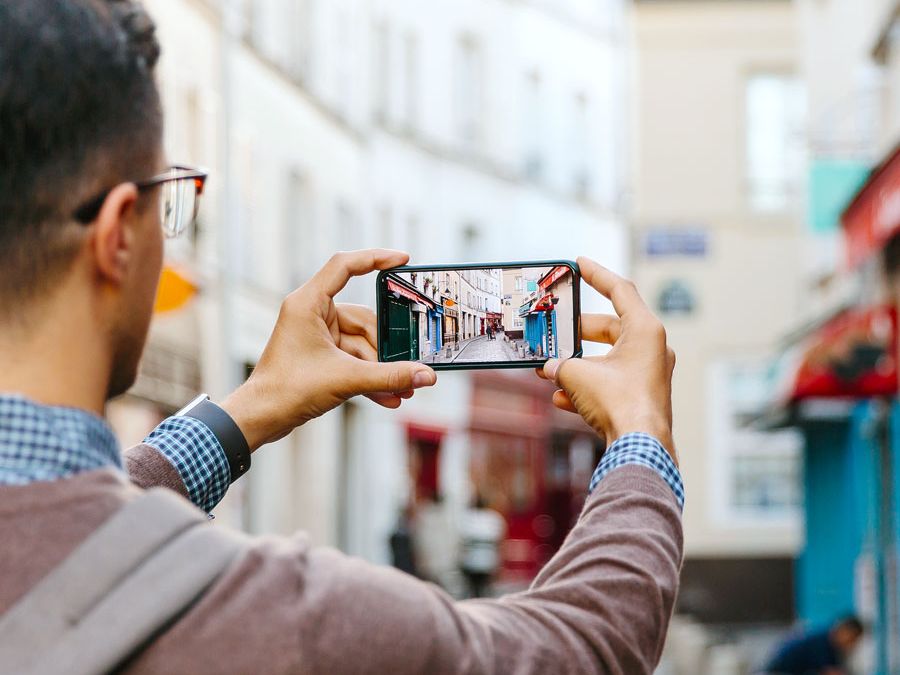
You likely use your iPhone’s camera app to take photos and videos all the time, particularly on vacation. But did you know the camera app also comes with a built-in live translation feature? This can be used to translate text written in an unfamiliar language into English or another language that’s easier for you to understand.
Say you’re dining out at a Parisian restaurant, but the only menus they have are written in French. Instead of panicking, just take out your iPhone and follow these steps:
- Open the camera app.
- Point the camera lens at the text that you need to translate until a yellow box appears around it.
- Once the yellow box appears, click the icon with three horizontal lines that should pop up in tandem. This icon will be located in the lower right corner of the image.
- Once you click that, several options will appear above the text, including “copy” and “select all.” Swipe right until you see “translate,” and click on this option.
- The phone should now automatically detect the language it’s reading and translate it into your preferred language.
If the feature doesn’t work as intended, check for these two common problems:
- The feature may be toggled off. In this case, open your phone’s settings, click on the camera app, and toggle on “show detected text.”
- You’re using an old operating system. Apple unveiled camera-based text recognition in 2021 in conjunction with iOS 15, so make sure you’re using iOS 15 or a more recent operating system.
Other iPhone Translate Features

In addition to this hidden camera feature, iPhones come preprogrammed with a dedicated Translate app. This app features a built-in camera mechanism, allowing users to snap an image and instantly translate the text.
While this is effectively the same as using the camera app, one useful perk of the Translate app is the conversation feature, which facilitates full conversations across two distinct languages with live translation.
To use this feature, select the two languages you’d like to translate, click on the microphone icon, and speak aloud. The phone will translate your speech into written text for the other person. Then, hand the phone over to the other person and have them take the same steps. This is a great tool for carrying on a conversation without needing to type every sentence into a translation app.
What About Android Devices?
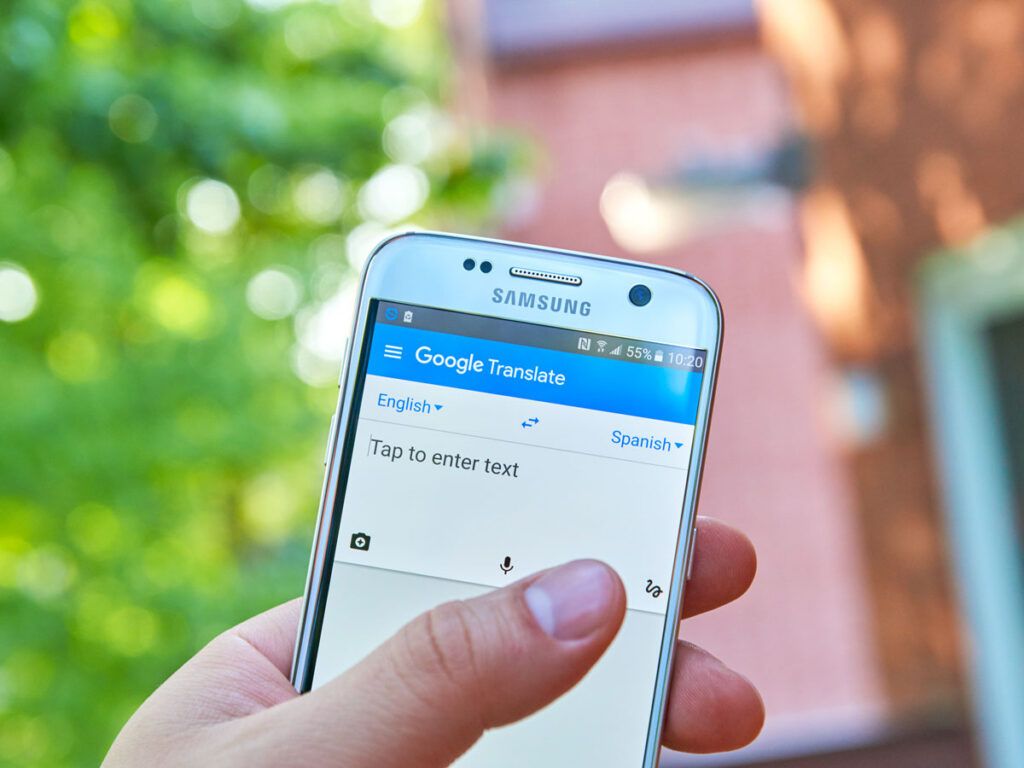
Don’t own an iPhone? Good news: Android devices have a similar translation service called Google Translate. This app offers a point-and-shoot camera translation feature similar to what’s on the iPhone. Some Androids come preinstalled with this app, but if not, it’s free and easy to download.
You can also use Google Translate to hold conversations with people speaking another language. As with the iPhone app, you can even predownload languages to Google Translate, allowing you to translate when you don’t have an internet connection.
Some Android phones — specifically many Samsung phones and tablets — also have a built-in “Live Translate” feature, which uses Galaxy AI to instantly translate foreign text. If you own a Samsung device, search for the “Interpreter” feature, which can be used to translate live conversations. It also has a “Call Assist” translation feature that allows you to interpret phone conversations. This might come in handy when calling an international hotel to confirm your booking, for instance.
Last but not least, there’s Google Lens, which translates over 100 languages in real time. To use Google Lens, open up the Google app on your phone, click the camera icon next to the microphone, and point your camera at the text you’d like to translate. Click the “translate” button at the bottom of the screen, and it should automatically detect foreign text and translate it into your preferred language.
Featured image credit: © Alexander Spatari—Moment/Getty Images
More from our network
Daily Passport is part of Inbox Studio, an email-first media company. *Indicates a third-party property.